Image Metadata and Orientation

I only learned this recently, but image metadata can contain orientation information. More specifically, this is the EXIF Orientation tag, also known as 274 or 0x0112. It does not necessarily change the image pixels themselves. Instead, it usually tells the viewer: this is how the file is stored, but this is how it should be displayed — rotated, mirrored, or both.
This tag is exactly where things get tricky. Problems begin when different parts of a pipeline handle Orientation differently: the browser, HTML generator, DOCX generator, office editor, or system preview. One tool respects the tag, another ignores it, and a third rotates the image but leaves the tag in place. As a result, a photo can look perfectly normal in one place and suddenly appear upside down somewhere else.
Here is an example file. The original files are available here:
On disk, it is a regular 1800x1200 JPEG, but its EXIF metadata contains orientation=5.
If we insert this file into a DOCX document, this is what we get:
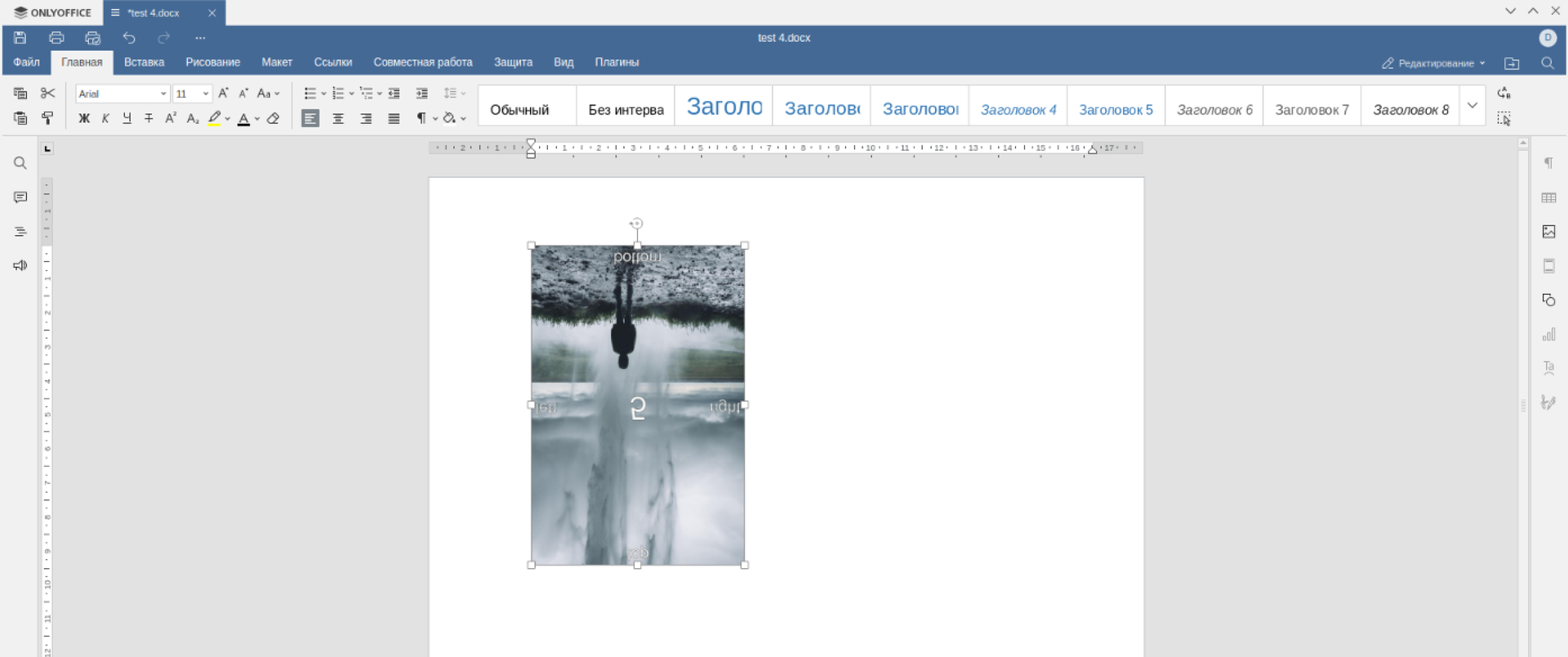
Strange? Very. And this can happen almost anywhere. It is a relatively rare scenario, but many systems simply are not prepared for it. Ours was not prepared either. We ran into the problem while generating a document that a candidate had to sign.
The problem could have been fixed during file upload: apply the orientation to the pixels once, then remove or reset the EXIF tag. At the time, however, I did not have access to the upload flow, so I had to normalize the file immediately before inserting it into the document.
What the Orientation Values Mean
Orientation has eight possible values:
| Value | Operation required for correct display |
|---|---|
1 |
Nothing; the image is already oriented correctly |
2 |
Mirror from left to right |
3 |
Rotate by 180 degrees |
4 |
Mirror from top to bottom |
5 |
Mirror across the main diagonal |
6 |
Rotate by 270 degrees |
7 |
Mirror across the secondary diagonal |
8 |
Rotate by 90 degrees |
There is an important catch here: 2, 4, 5, and 7 require mirroring, not just rotation. This is why a solution like “if it looks wrong, rotate it by 90 degrees” quickly breaks on some of the examples.
The Modern Approach
Pillow now provides a ready-made function called ImageOps.exif_transpose. It reads the Orientation value, applies the required transpose operation to the pixels, and removes the orientation tag so that the next system does not rotate the image again.
from PIL import Image, ImageOps


def normalize_image_orientation(image: Image.Image) -> Image.Image:
    return ImageOps.exif_transpose(image)
If the result needs to be written to a file, save the normalized image:
from pathlib import Path

from PIL import Image, ImageOps


def normalize_image_file(source: Path, destination: Path) -> None:
    with Image.open(source) as image:
        normalized_image = ImageOps.exif_transpose(image)
        normalized_image.save(destination)
After that, the image should contain correctly oriented pixels without an instruction saying, “now rotate me one more time.”
The Manual Approach
The old implementation is still worth keeping because it shows what actually happens inside exif_transpose.
from PIL import Image


def rotate_image_by_orientation(_file: Image.Image) -> Image.Image:
    orientation: int = _file.getexif().get(274, 1)
    match orientation:
        case 2:
            _file = _file.transpose(
                Image.Transpose.FLIP_LEFT_RIGHT,
            )
        case 3:
            _file = _file.transpose(
                Image.Transpose.ROTATE_180,
            )
        case 4:
            _file = _file.transpose(
                Image.Transpose.ROTATE_180,
            ).transpose(
                Image.Transpose.FLIP_LEFT_RIGHT,
            )
        case 5:
            _file = _file.transpose(
                Image.Transpose.ROTATE_270,
            ).transpose(
                Image.Transpose.FLIP_LEFT_RIGHT,
            )
        case 6:
            _file = _file.transpose(
                Image.Transpose.ROTATE_270,
            )
        case 7:
            _file = _file.transpose(
                Image.Transpose.ROTATE_90,
            ).transpose(
                Image.Transpose.FLIP_LEFT_RIGHT,
            )
        case 8:
            _file = _file.transpose(
                Image.Transpose.ROTATE_90,
            )
        case _:
            pass
    data = list(_file.getdata())
    image_without_exif = Image.new(_file.mode, _file.size)
    image_without_exif.putdata(data)
    _file = image_without_exif
    return _file
This match statement is correct for Pillow. Some parts may look unintuitive, but they are equivalent to the standard transpose operations:
- 4:
ROTATE_180 + FLIP_LEFT_RIGHTproduces the same result asFLIP_TOP_BOTTOM; - 5:
ROTATE_270 + FLIP_LEFT_RIGHTproduces the same result asTRANSPOSE; - 7:
ROTATE_90 + FLIP_LEFT_RIGHTproduces the same result asTRANSVERSE.
Today, however, I would not maintain this mapping manually without a specific reason. The existing ImageOps.exif_transpose function is easier to read and harder to break accidentally.
What About Removing EXIF Data?
The old code ends with this part:
data = list(_file.getdata())
image_without_exif = Image.new(_file.mode, _file.size)
image_without_exif.putdata(data)
It recreates the image using only its pixels and therefore bluntly discards all metadata. That was acceptable for my use case: a document intended for signing did not need the original photo’s EXIF data, and the image had to avoid being rotated again.
This is not universally safe, though. Together with Orientation, you may lose the capture date, GPS coordinates, DPI, color profile, camera details, and other fields. If those values matter, it is better to apply the orientation and then remove or reset only the Orientation tag instead of deleting all EXIF data.
One more detail that is easy to miss: after normalization, you must use the image’s new dimensions. For values 5, 6, 7, and 8, the width and height are swapped.